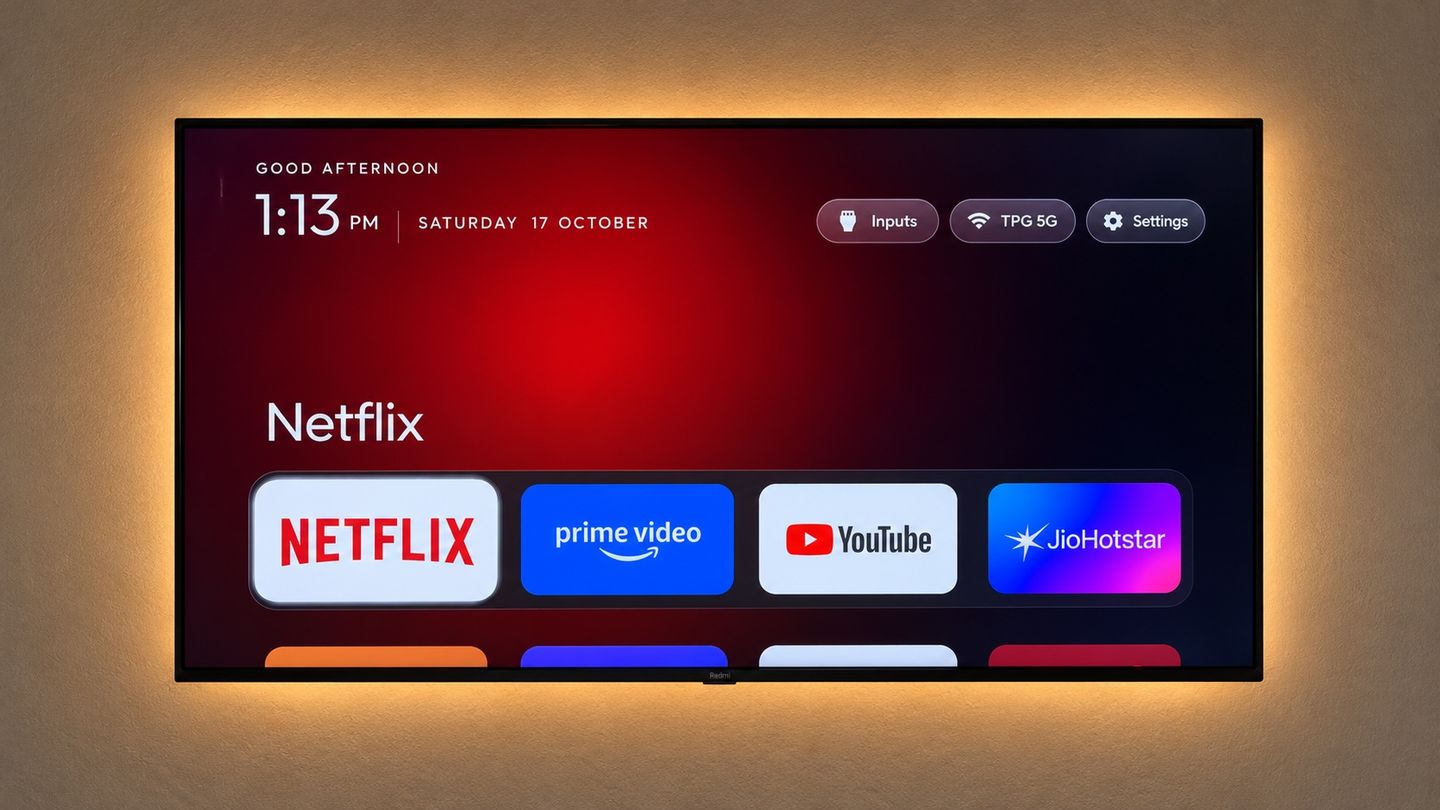
CleanYourTV is an open-source project that changes how a supported Android TV or Google TV looks and works. You can replace the stock home screen with a simpler launcher, choose the apps shown on it, and optionally disable unwanted background services. You keep using your existing TV and remote.
ChatGPT can turn the project’s technical instructions into a conversation. It can explain what each change does, help you choose what to keep, prepare commands for your computer and work through errors with you. You carry out the actions it gives you and share the results. The prompts below show what to send and what should happen next.
Before the first prompt
Have your Android TV or Google TV and remote nearby, with your computer on the same home network. This full walkthrough does not cover Samsung Tizen, LG webOS, Roku, VIDAA or Fire TV.
Open a new ChatGPT conversation on your computer. The free plan can help, within its usage and file-upload limits. Keep the whole setup in that conversation so ChatGPT has your TV details and earlier results.
Use ChatGPT as your guide throughout. It cannot directly operate your computer or TV from this browser conversation; it should wait for your results before moving on.
1Give ChatGPT the project and your TV
Send the project link and what you know about your TV. ChatGPT should explain the approach, check compatibility and ask for any missing details. Replace the highlighted fields with your details in ChatGPT before sending.
Start the project
Help me use CleanYourTV on my own TV:
https://github.com/Gathin23/cleanyourtv

TV brand/model: [what I know]
Computer: [Mac or Windows]
Goal: a cleaner home screen with my own apps.

Read the current README.md and PROMPT.md. If you cannot access them, ask me to paste or upload them. Check compatibility and ask for missing details.
I am using browser ChatGPT and carry out the actions myself. Give one instruction at a time, say where to do it and what success looks like, then wait for my result.
Use the project's tools and recovery records. Do not guess package names, use another TV's removal list, uninstall packages, root the TV or bypass guards. Start with a plan; get my approval before TV changes.
Expect a few questions about your TV model, software version and features you use. If ChatGPT cannot read the project files, it should ask you to paste or upload README.md and PROMPT.md. Crop account details and serial numbers out of any photos you share.
2Ask ChatGPT to guide the setup
ChatGPT should explain how to get the project ready on your computer. It may ask you to download the project or install a missing tool, with instructions tailored to your operating system.
Prepare the tools
Using the project's setup instructions, guide me through getting it ready on my computer. Check what I already have and explain any required downloads or installations.
Give one instruction at a time, with the exact command if needed and where to run it. Wait for my result and help me resolve any error before continuing. Do not change the TV yet.3Connect the TV when ChatGPT asks
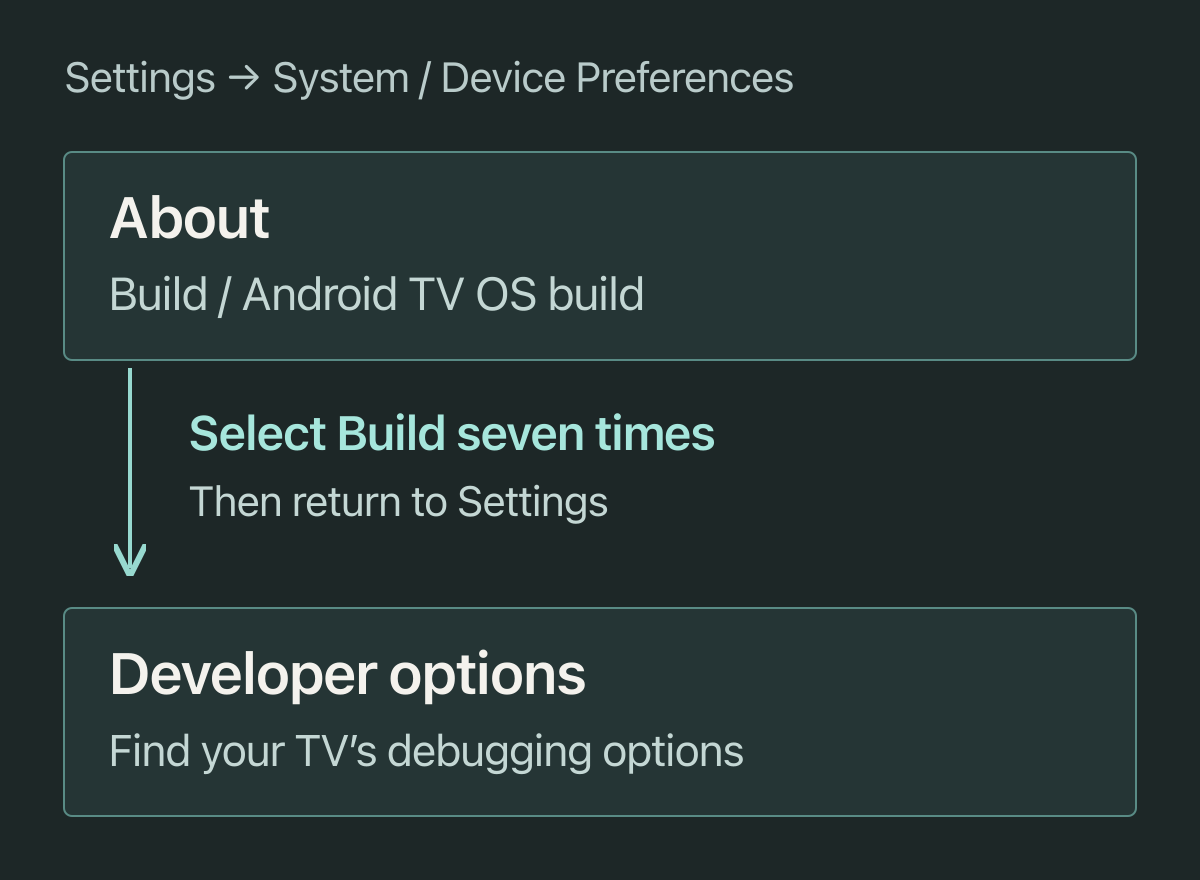
This is where you’ll use the remote. ChatGPT should help you find the TV’s debugging options, which allow your computer to connect, and its network address.
Connect to my TV
Guide me through connecting this TV on my home network. Ask what I see on screen and adapt to my model's debugging options. I will use the remote and approve my own computer on the TV.
Give me the project's read-only device probe for my computer, then check the output I send back. If Wireless debugging needs pairing, distinguish its pairing and connection ports. Confirm the reported model before changes.
Many TVs use the menu path below. Tell ChatGPT what you see if your model uses different labels.
4Tell ChatGPT what you want to keep
Choose your home-screen apps and the features you use. ChatGPT should guide you through saving recovery information and explain a plan before you change those settings.
Plan my TV setup
Home-screen apps, in order: [my apps]
Keep these features: [HDMI, live TV, casting, voice, updates]
Extra background-app cleanup: [no / propose options]

Guide me through saving the pre-change package list, already-disabled packages, settings and device information. Help me confirm the files exist.
Explain each proposed change, what could stop working and how to undo it. Leave uncertain packages enabled. Before each approved change, help me save its exact list and restore command, preserving the project's recovery records. Wait for my approval.
Expect a plain-language plan for the new home screen and any optional cleanup. Ask about anything you don’t understand. You can keep the launcher change and decline the extra cleanup.
5Have ChatGPT guide the installation
Once you’re happy with the plan, ChatGPT should give you the instructions for installing the launcher. Send back the output after each step so it can help spot problems before you continue.
Apply the approved plan
Walk me through applying only my approved changes with the project's build/install and disable/restore tools. Preserve their guards and recovery records.
Give one step at a time and wait for my output. Have me check that the new launcher opens with Home before switching away from the old one. Never disable the only working Home app. Pause after each small batch while I test my kept features. If anything fails, stop and guide me through the saved restore plan.
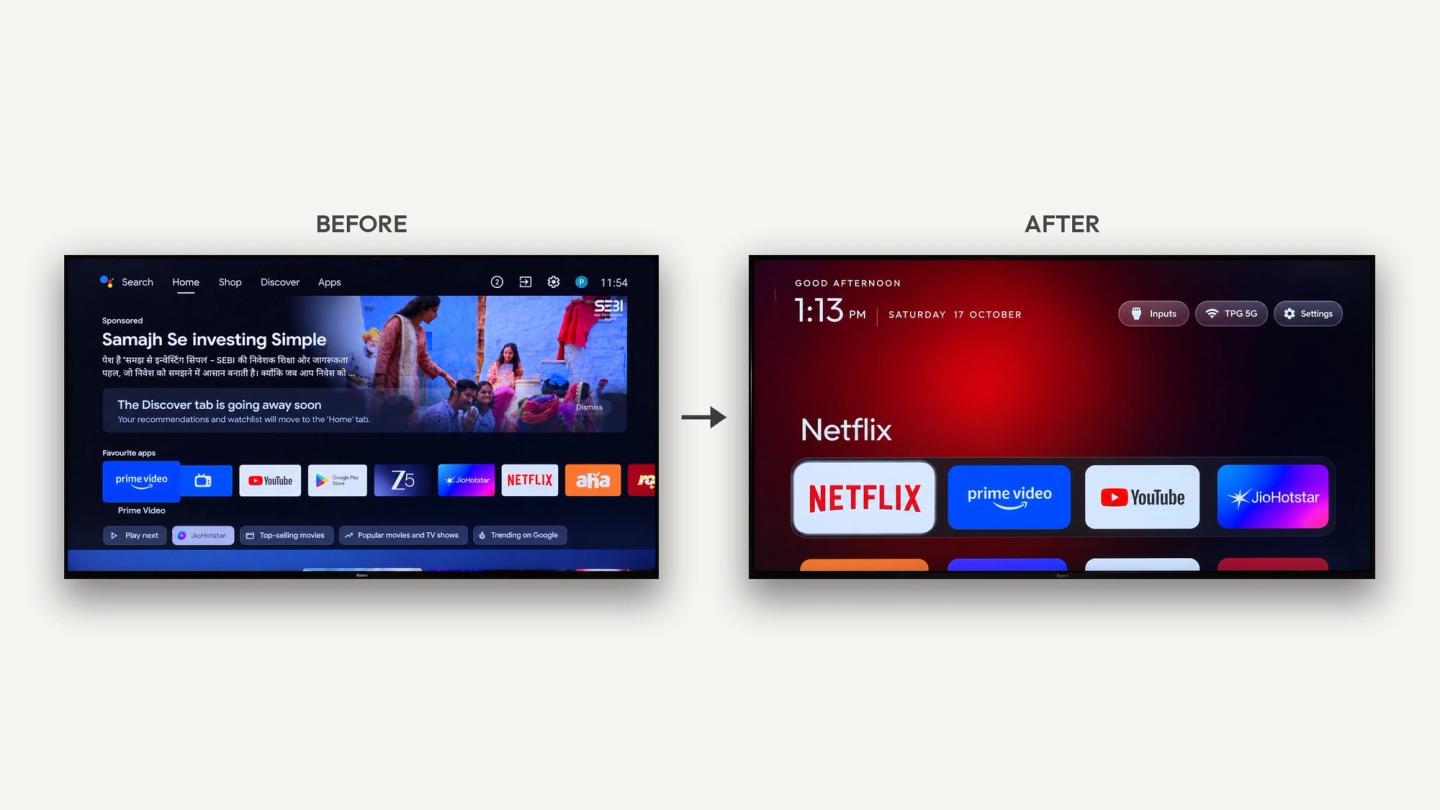
Expect your chosen apps on a simpler home screen. This is the project creator’s before/after example; your apps and layout will depend on your choices.
6Check the result with ChatGPT
ChatGPT should walk you through the final checks. You’ll confirm playback, sound and the remote yourself.
Check the result and finish
Walk me through testing my kept features, then restarting the TV and checking again. Wait for my results instead of assuming success.
Help me record any Wireless debugging connection port, turn off all debugging modes used and revoke my computer's authorization. Give me the project's closed-port checks, including port 5555, and review my output. A timeout is not proof of closure.
Finish with a reminder of where I saved the project, recovery records and exact restore instructions.- Try Home, Back, settings and volume. Open the apps you chose and play something with sound.
- Check the HDMI devices, live TV, casting and voice features you use.
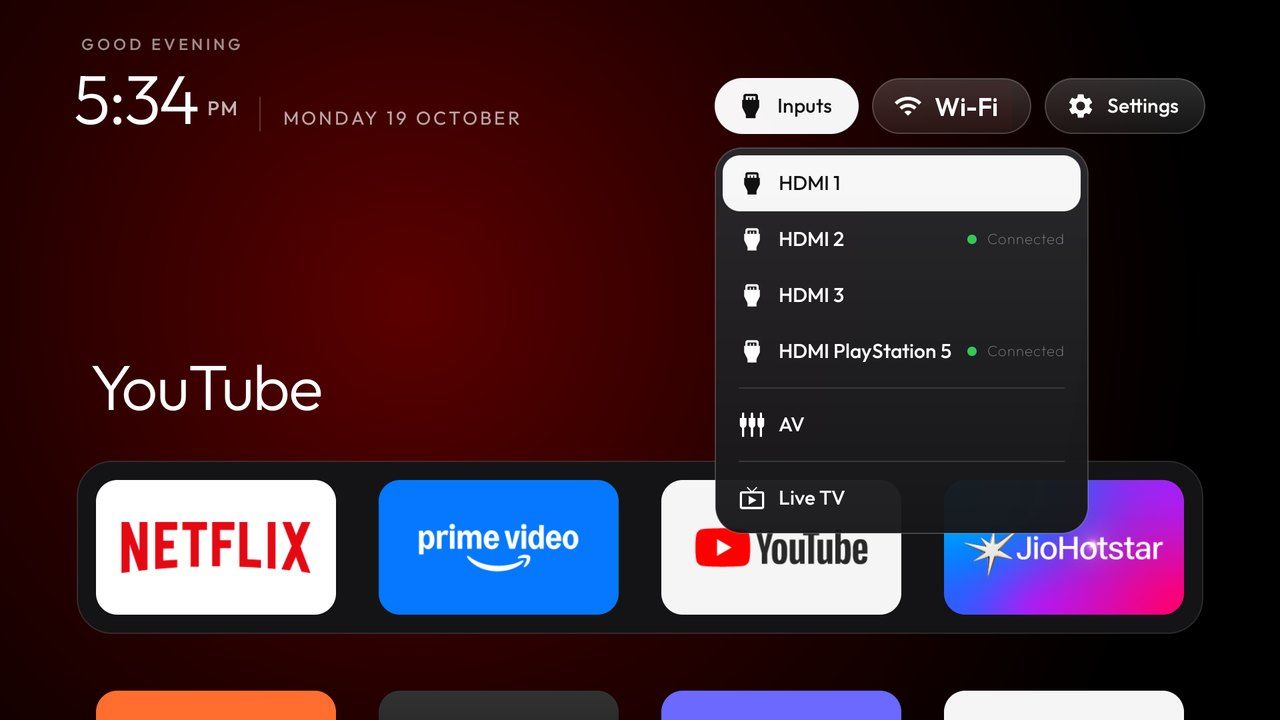
After a restart, the home screen and your kept features should still work. Once debugging is off, the launcher keeps working on its own. Keep the project and recovery files for later.
If something doesn’t work
Stay in the same conversation so ChatGPT has the setup history. Describe what changed, paste the error or explain what you see on the TV.
Ask AI to diagnose the problem
Something failed: [what happened or the exact error, with private details removed]. The last thing that worked was [description].
Stop further changes. Use the results I've shared and ask for any read-only diagnostic information you need. Explain the likely cause and guide me through the smallest fix using my saved recovery records. Do not bypass guards or factory-reset the TV as a first step.
If the assistant says a recovery record is missing
Stop and locate the original records. The restore tool’s fallback can enable every package in its list, including ones disabled before you started; that does not restore your exact previous state.
TV photos and screenshots: Gathin / CleanYourTV, under the MIT licence. The settings diagram illustrates a typical menu path.